
Complete tasks in the UHRS platform

You can complete various Human Intelligence Tasks (HITs), such as image classification, audio transcription, and video evaluation, on the Universal Human Relevance System (UHRS) platform.

Each task type, known as a HITapp, comes with its own pay rate, which is readily visible on the platform.

Table of Contents

Tips on using UHRS

Enhance your experience on the UHRS platform with these tips. Here’s a pro tip: submitting high-quality work increases your chances of earning a higher pay rate.

Do not access UHRS abroad

Complete UHRS tasks only in your country of residence. Do not log in from abroad.

Disable VPNs

To avoid being locked out of UHRS, do not use Virtual Private Networks (VPNs) when you log in.

Work at a good pace

Take your time to submit quality work; rushing may lead to being flagged for spamming.

Complete high-priority tasks first

Look for HITapps marked with a green icon – they’re high-priority tasks that should be done first.

Check for tasks regularly

Log in to UHRS frequently to check for new HITs. HITs are typically refilled during the work week.

A document icon showing a paper with a checkmark

Report HITApp bugs to the client

Click the bug icon on the HITApp tile to report issues directly to the client for resolution, as CrowdGen does not handle these reports.

Connect your mobile device to UHRS

Some HITapps can only be completed via the mobile app. To do these, you’ll need to install the UHRS mobile app and connect your mobile device to your account.

1. Sign in to UHRS on your computer

To log into UHRS, use the same Windows Live ID email (@outlook.com, @hotmail.com, @gmail.com) that you recently registered with us.

2. Download and log in to the UHRS app

After logging into the UHRS app, you can view the available HITapps on your desktop web browser.

For Android phones

1. Visit the Appen UHRS webpage and click “Join group”

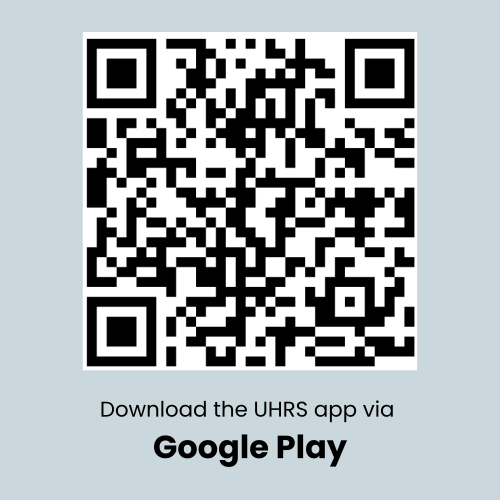
2. Wait 10-15 minutes for access, then download the beta UHRS mobile app from Google Play

3. Log in to the app using your UHRS credentials

For iOS / iPhones

1. Download the UHRS mobile app from the App Store

2. Log in to the app using your UHRS credentials

Select a task and start working

Task availability varies by location; some areas may have more tasks while others may have fewer.

1. Choose a task category

After connecting your mobile device to the platform, you’ll arrive at the UHRS marketplace, where you’ll find various task categories. Each category may contain multiple HITApps.

Choose category that you’re interested in.

2. Select a HITapp

Each HITapp tile provides a description of the task along with important details, including:

  • Pay rate
  • Number of tasks available
  • Average time to complete each task


Select the HITapp that you’d like to work on.

3. (For certain HITapps) Train or qualify for the task

For some HITApps, you’ll need to pass a screener test or training to qualify. These HITapps usually have “train” or “qualify” buttons on them.

You’ll receive reading materials to help you prepare for the tests.

Once you pass the test or training, you can start working on the task.

Check your metrics

Go to your report tab

Click on the Report tab to see stats about the work you’ve completed.

Select your desired date range, then view your total number of judgments, time spent, money earned during that time period, and quality scores.

Frequently Asked Questions (FAQ)

Please wait for the project team to contact you about your participation. This process typically takes 1-2 weeks.

You will receive another email once you are set to work or start for the project as though you already have passed the initial qualification, we are still yet to review your profile. Once everything is set, only then you can access UHRS.

As per the new UHRS policy, you can only use one unique UHRS ID. If you are already working with UHRS from a different vendor, we suggest you visit our Project Page for other projects that may interest you.

Project Caine only includes Search Engine Side by Side (SBS), so if you are working on both Caine and Whatcom, you can consider all SBS work completed to be for Caine, and all other hitapp work is for Whatcom. Project Pasig only includes product testing HITapps, so if you’re working on both Pasig and Whatcom, you can consider all product testing work completed to be for Pasig, and all other HITapp work is for Whatcom.

Most HITapps have guidelines available for download directly on the HITapp tile in the UHRS marketplace. Some HITapps have hit specific guidelines that you’ll see after clicking “Start” on the HITapp tile.

For guideline clarification questions you may send in a message to the project team and we’ll do our best to get you a response from the client, but please note due to the high volume of messages received, it may not be possible for the project team/client to respond to all guideline clarification questions.

Language assessment quizzes are “invite only.” If you complete a language assessment quiz without first receiving an invitation from the project team, your passing result will not be considered valid.

You may report technical and/or content error issues with HitApps via the tool by clicking on the “bug” icon and filling out the “report a technical issue” form complete.

By doing so, you are providing feedback directly to the client. Keep in mind that CrowdGen does not design or control the Crowdsourcing HitApps in any way.

Typically, they will not show the correct answers; these are designed for judges to see what the task involves before they decide to participate. This will vary per task.

There are two possible reasons this occurs:

  • The number of HITs shown is an estimate and may not be the actual number of hits available to you. If a hitapp shows a certain number of hits available, but when you click on it there are no hits to work on, it may be because you cleared out all available work for you (there is a limit of the number of HITs each judge can complete) and the remaining HITs are available to other judges.

  • It may be because the client has gathered their desired number of hits completed for the hitapp and they have not yet removed the “task file” from the hitapp which results in a hitapp showing available hits that can’t actually be worked on.

Crowdsourcing tasks are available based on our client’s need and Appen does not control how often they are loaded.

Email notifications are sent out when new HitApps are available, but you will also want to check your Market Place periodically for new work.

There are two possible reasons for this:

  • Your “Spam Accuracy” is too low, spam are blind test questions judges receive in production, which is a measure of judgment accuracy. If your spam score is too low, you may be temporarily or permanently blocked from a HITapp.

  • HITapp owners have filters setup to select the types of judges they want working on their tasks, filters may include high quality on other hitapps, a certain number of HITs completed in other HITapps, and/or geographic location. If you do not meet the requirements of the HITapp filters you will not be granted to that HitApp.

CrowdGen takes illegal content on the web very seriously. All consultants on the Crowdsourcing Program should report illegal content involving children to the client via this web form using the instructions below. The client then reviews these reports and passes on the information to the appropriate authorities around the world.

Instructions for reporting illegal content:

Submit escalations on this page.

    • On the form, for the field:
    • “The e-mail address for us to send a response”, use the email address cp_escalations@appen.com for all reports
    • Do not use your personal or your Appen email address.
    • Problem: choose “Child endangerment or exploitation”
    • Description: give a brief overview of the issue seen on the LP
    • Search Term or Keyword: Paste the query
    • Thumbnail/Video URL: Paste the LP URL (disregard the example shown)
    • What is the page/domain to be classified as CP/adult: paste the LP URL. Remember to submit results one at a time.

Spam HITs are bling test questions judges receive in production, you will not know which HITs are spam HITs and which are regular production hits.

Spam HITs are used to measure judgment accuracy. Sometimes you will get a pop up after submitting a judgment showing the correct answer and the reasoning, these are called “RTAs (Real-time Audits).

RTAs and Spam HITS are similar as they are “test questions” used to measure quality, however they differ in that only RTAs will show the audit feedback at the time of receiving it in production. And at this time you can only view your Spam accuracy on the report tab.

Become a Geolancer 

Our waiting list is currently closed, but Geolancer is going public at the very end of August and it will be rolled out gradually across Southeast Asia.

Watch this space!

Privacy Overview

This website uses cookies so that we can provide you with the best user experience possible. Cookie information is stored in your browser and performs functions such as recognising you when you return to our website and helping our team to understand which sections of the website you find most interesting and useful.